
Choose the system for the job
| Your task | Start here | Why |
|---|---|---|
| Let the agent sign into one website | Built-in Hermes vault | No password-manager server to operate; saved login is bound to the site’s origin. |
| Reuse website passwords already in a manager | Bitwarden Password Manager or 1Password | Use a dedicated account or vault containing only the items the agent needs. |
| Load provider or API keys for an unattended runner | Bitwarden Secrets Manager | Native Hermes setup wizard, machine-account project access, centralized rotation. |
| Self-host website-password storage | Vaultwarden + Bitwarden client | Useful when you can maintain a private HTTPS service and its backups. It is not Bitwarden Secrets Manager. |
Recommended: start with the built-in vault for website logins. Add Bitwarden Secrets Manager when several runners share API keys. Run Vaultwarden only if you want to self-host. If an orchestrator already injects your secrets, keep it.
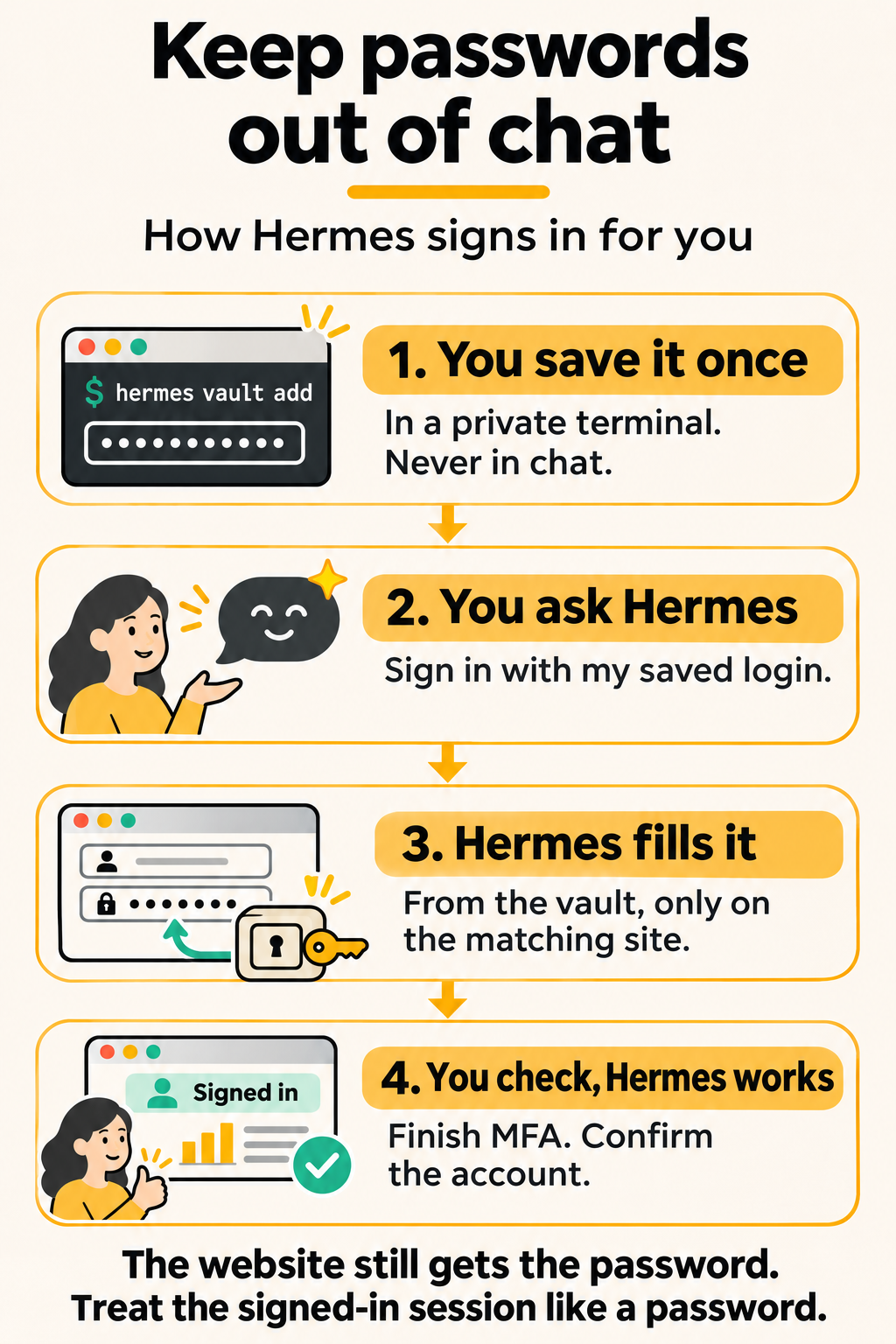
Website recipe: save one login in the built-in vault
- Create or choose a low-risk website account dedicated to the task. Keep your main email, financial and administrator accounts out of the first test.
- On the Agent host, open a private interactive terminal using the same profile as the intended runner.
- Check the available vault commands, then add the login:
hermes vault --help
hermes vault add
hermes vault list
hermes vault key
Answer the interactive prompts with the login type, label, exact HTTPS site origin (for example https://github.com), identifier type (email or username), identifier and password, with an optional hidden authenticator key for TOTP. The password entry is hidden. Do not put the password after a shell command or ask the agent to run this interaction from chat. list shows handles and metadata, which you can use later for removal.
For a named profile, select that same profile for these commands and the runner; a login saved under a different profile will not appear. Keep the handle and origin in your setup notes, without the password.
Save logins from the Agent’s own terminal, not from WebUI chat. Then check that WebUI can use the saved login before you rely on it.
Test the saved login without pasting it into chat
- Open the Agent’s terminal or Desktop app, with its built-in browser, on the same profile.
- In a fresh session, ask: “Open the saved site, use my saved login, and report only whether sign-in succeeded. Do not display the password.”
- Inspect the tool activity. The saved credential should be filled with
browser_vault; the result reports fill status and origin, rather than a password. Confirm the expected account on the actual website. - Repeat from WebUI only after checking that this Agent and browser capability is available there. If it says
prompt_unavailable, save the missing item from the interactive CLI. If it saysunavailable_in_this_session, the manager is locked and this session can’t ask you to unlock it. Use a pre-saved local vault item, or run the task in an interactive CLI, TUI or Desktop session.
A fill and a submitted, authenticated login are separate events. If the site has a second step, complete it and confirm a page that requires authentication; seeing the login form disappear is not enough.
MFA: a saved TOTP seed can generate origin-bound codes; store it only for accounts where you deliberately permit unattended login, and keep recovery codes elsewhere. Hardware keys, passkeys and app approvals still need the appropriate human or device step. Don’t turn off MFA to get past this.
Already use Bitwarden Password Manager or 1Password?
- Install the manager’s official
bworopCLI on the Agent host. - Use a dedicated account containing only the required website items. For each login, save the exact allowed site URLs.
- Authenticate the CLI following the manager’s instructions. For Bitwarden,
bw login --apikeyauthenticates the account but does not decrypt or unlock the vault. - Start an interactive Hermes session. Hermes picks up an installed CLI automatically; it must also be signed in before the first fill. The first manager fill asks for the master password through a masked prompt and keeps its session token in that Hermes process’s memory.
- Perform the website test above, then use the surface’s Lock control or exit that Hermes process when finished.
Do not run bw get password, bw unlock --raw, or an equivalent op read in an agent-visible terminal just to feed a password back into the conversation. Use the vault fill path.
Separate processes matter: unlocking an interactive CLI does not unlock a separate WebUI server automatically. Sessions expire after 30 idle minutes or on Lock. Running bw lock in a different shell is not proof that another running Hermes process discarded its cached manager token. For unattended website fills, pre-saved local items or a narrowly scoped supported service account need their own tested setup; a locked personal manager is not a reliable unattended connection.
API-key recipe: Bitwarden Secrets Manager
This is the machine-secret product, distinct from Bitwarden’s password vault and from Vaultwarden. The current native Hermes wizard handles project selection and startup fetching.
- In Bitwarden’s web app, use the product switcher to open Secrets Manager.
- Create a project such as Hermes reporting. Add one test provider or task key as a secret. Its Name must exactly match the environment variable, for example
OPENAI_API_KEYorGITHUB_READ_TOKEN. - Open Machine accounts → New machine account → Projects and grant Read access to this project only.
- Under Access tokens → Create access token, choose a suitable expiry and copy the token once. This token can read the project; treat it as a high-value credential.
- On the Agent host, in the intended profile’s private terminal, run:
hermes secrets bitwarden setup
hermes secrets bitwarden status
The wizard downloads bws if it is not on PATH, accepts the token in a hidden prompt, asks for US or EU or a compatible custom Secrets Manager server, lists accessible projects, test-fetches the chosen project and enables the source. Use the same region as the account; a US or EU mismatch can look like bad authentication.
Expected: status identifies the enabled source and intended project ID; a fresh Hermes process loads the named variables. For model keys, open hermes model in a fresh process and check the (from Bitwarden) source indicator, then run a short test conversation. Restart the actual WebUI, gateway or job runner to load a rotated key: refreshing its browser tab does not restart the server.
The bootstrap BWS_ACCESS_TOKEN is stored in the profile’s .env. Keep that file private and outside Git. Hermes strips this bootstrap from spawned tool environments; do not try to run bws inside an agent tool with the same token. Ordinary task tokens need explicit forwarding only to the tools that require them.
Choose the failure policy: by default fetched values override existing ones, but a failed fetch does not block Hermes startup: it warns and continues with credentials already in .env. After verifying migration, decide whether you want that fallback. For central-only management, remove obsolete provider-key copies in a private editor, retain the bootstrap token, restart and test. Other credential sources keep their own fallbacks.
Rotate: create a replacement at the provider → update the project secret → restart the runner → verify a successful request with the replacement → revoke the old provider key. Revoking the Bitwarden access token stops future fetches but does not erase provider keys already held by a running process.
If the machine token expired, use the masked replacement prompt:
hermes secrets bitwarden token
hermes secrets bitwarden status
If the project is missing, check machine-account Read access and region. If the secret loads under the wrong name, rename it to the exact supported variable and restart. Do not enable verbose secret-value logging to diagnose these failures.
Advanced: run a private Vaultwarden password vault
Use this route for website-password storage when you are prepared to operate the server. Most readers can use hosted Bitwarden instead. Vaultwarden is an independent Bitwarden-compatible project, not the official Bitwarden server and not a Secrets Manager backend.
Prerequisites: Docker Compose and Tailscale on a dedicated host, the Agent host also on that tailnet and allowed by its policy, a tailnet policy initially limited to you, and no existing Serve route on the HTTPS port you will use. Back up the persistent data directory. The pinned example below uses Vaultwarden 1.37.5, released November 1, 2026; review newer release and security notes before deploying.
- Create a private working directory and save this as
compose.yaml. ReplaceYOUR-VAULT.YOUR-TAILNET.ts.netwith the actual HTTPS name that Tailscale assigns to this host.
services:
  vaultwarden:
    image: vaultwarden/server:1.37.5
    restart: unless-stopped
    ports:
      - "127.0.0.1:8222:80"
    environment:
      DOMAIN: "https://YOUR-VAULT.YOUR-TAILNET.ts.net"
      SIGNUPS_ALLOWED: "true"
    volumes:
- ./vw-data:/data- Start the container, then expose the loopback service privately through Serve:
docker compose up -d
tailscale serve status
tailscale serve --bg http://127.0.0.1:8222
tailscale serve status
Verify that the printed HTTPS URL exactly matches DOMAIN; correct the value and rerun docker compose up -d if needed. Use Serve, not Funnel. Leave 8222 bound to host loopback and restrict the tailnet policy to the intended users and devices.
- Open that HTTPS URL from your signed-in tailnet device. Create your operator account and a separate agent account with different strong master passwords.
- Set
SIGNUPS_ALLOWED: "false"in Compose and rundocker compose up -dagain. Check that a new uninvited registration is rejected while your existing accounts can still sign in. Keep access operator-only until this succeeds. - Install the official Bitwarden CLI on the Agent host. If it is already signed in, run
bw logoutfirst; this ends that CLI account session. Point it at your real HTTPS server, then authenticate the dedicated account:
bw config server https://YOUR-VAULT.YOUR-TAILNET.ts.net
bw login --apikey
Create or retrieve the dedicated account’s personal API credentials through its vault settings, in your private terminal. This is Password Manager authentication; it does not unlock the vault. Add only the required website items, then use the interactive Hermes manager unlock and fill recipe above. Do not point hermes secrets bitwarden setup at Vaultwarden: that wizard expects the different Secrets Manager API.
Maintain it: back up the complete vw-data while its writers are stopped, encrypt the backup and rehearse recovery. To retire this service, remove only its exact Serve route using the official reference and stop its Compose service; do not delete the persistent directory until recovery is accounted for. Never run a global Serve reset on a shared host.
Protect the vault key and your backups
Run hermes vault key to see where the local encryption key lives. By default, vault.key sits next to vault.json.enc under the profile’s vault directory, with private file permissions. A copied Agent home can therefore contain both the encrypted data and its decryption key.
On a host where the actual runner can access the OS keychain, migrate and verify:
hermes vault key migrate --to keychain
hermes vault key
The command installs the keychain extra if needed and verifies the keychain copy before removing the file key. A desktop keychain accessible to your terminal may be unavailable to a headless service, SSH session or logged-out scheduled job. Test the actual runner. To move the vault to another machine deliberately, the documented reverse path is:
hermes vault key migrate --to fileProtect that exported home or backup because it again carries the file key. A missing keychain entry can make the encrypted vault unrecoverable; arrange keychain recovery too.
Origin checks prevent a saved fill on the wrong site, but the correct website and its scripts still receive the filled value. A cloud browser service also sees its browser page. Software and plugins with your OS privileges can access the same files or process memory. Use a separate account or VM for stronger isolation, and keep authenticated browser cookies protected like credentials.
Revoke the credential and verify the result
| Route | Action | Fresh test |
|---|---|---|
| Local website login | Run hermes vault rm <handle> using the handle from list; on the website, sign out other sessions and rotate the password if retiring or compromised. | A new browser session cannot sign in using the removed item. Old cookies may still work until the site revokes them. |
| Password-manager source | Lock or exit the actual Hermes process; remove its item or access and revoke the website session as appropriate. | A fresh process cannot fill an unavailable item. Locking a different shell doesn’t count. |
| API key | Revoke the key at its issuing service, remove or update the secret, and restart the runner. | A fresh request with the old key is rejected. See the GitHub example. |
| Secrets Manager machine token | Revoke it in Bitwarden and stop and restart affected runners. | The old token cannot fetch the project. Previously fetched provider keys need separate revocation. |
You are done when: the allowed task succeeds, you can identify the store, profile and process used, no setup required a secret in chat, and the old credential fails after issuer-side revocation. Keep the account name, origin or project, expiry, owner and revocation location in a small inventory without recording secret values.